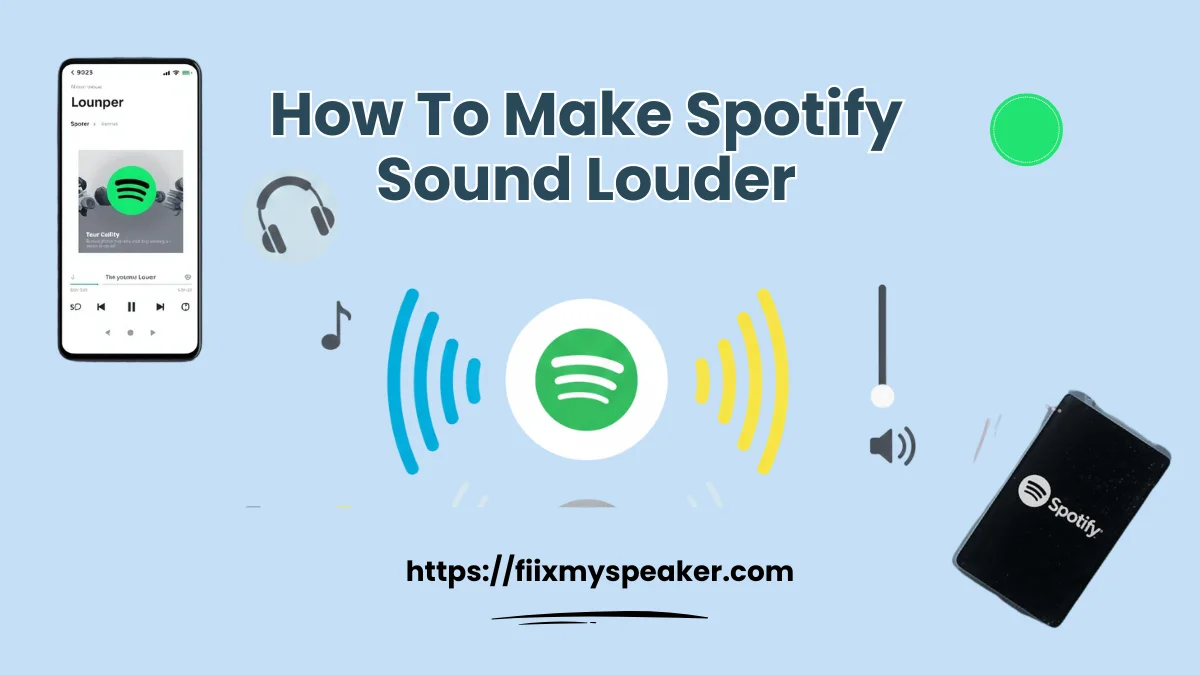
How To Make Spotify Sound Louder: Turn Up Spotify Volume in Seconds
If your favorite songs on Spotify play too quiet even at max volume, you face a common issue. Spotify limits loudness to protect your ears and keep sound consistent across tracks. This built-in feature often leaves music softer than local files or other apps.
You can fix it fast with a few tweaks inside the app and on your device. Simple changes to playback settings, quality options, and your phone or computer volume unlock fuller, punchier audio. No extra tools or downloads needed for the basics.
This guide covers proven steps that work on phones, desktops, and speakers. Follow them to hear every beat clearly without distortion. In seconds, your playlists sound vibrant again ready for home, the car, or on the go.
Why Use Speaker Cleaner Sound for Louder Spotify?
Dust, lint, and earwax build up inside your phone or laptop speakers over time. This grime blocks sound waves and makes Spotify tracks sound muffled and quiet. A speaker cleaner sound tool fixes that problem fast.
The tool plays low and high-frequency tones that vibrate the speaker. These vibrations shake loose the trapped particles from the grill. You hear clearer audio right away, and the volume feels louder without changing any settings.
Run the cleaner for 30-60 seconds while your device sits face up. Wipe away any pushed-out debris with a soft cloth. Do this every few weeks to keep Spotify playback crisp and full.
Check Spotify Loudness Normalization Settings
Spotify turns on Spotify audio normalization by default. This feature keeps every song at the same volume level. It prevents quiet tracks from sounding too soft and stops louder songs from blasting unexpectedly.
However, Spotify audio normalization lowers the overall sound to meet a fixed standard. Many users notice their music feels quieter because of this adjustment.
To get louder playback, turn it off. Open Spotify, tap Settings, go to Playback, find Enable Audio Normalization, and switch it off. Songs will then play at their full recorded volume for a louder, more dynamic sound.
Change Audio Quality Settings on Spotify (Low, High, Very High)
Spotify lowers audio quality when your connection slows or if you use the free plan. Low-bitrate streams compress the sound and cut detail, so songs feel flat and quiet even at full volume. Higher quality keeps the full range of the recording.
Open the Spotify app and tap your profile. Go to Settings and scroll to Audio Quality. You see options for Wi-Fi, cellular, and downloads. Change each to Very High.
You need a Premium account for 320 kbps streaming. The richer file adds depth that makes music sound stronger at the same volume level. The music plays with more punch, especially through good headphones or clean speakers.
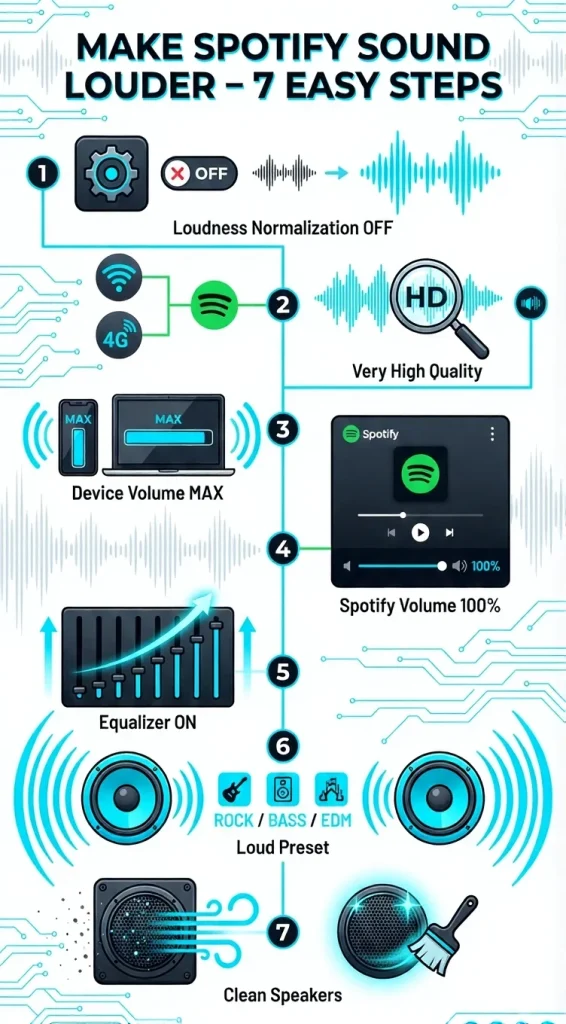
7 Easy Steps to Make Spotify Sound Louder
Follow these seven steps to get louder, clearer Spotify audio fast.
- Turn off Loudness Normalization. Open Settings > Playback and switch off the feature. Songs now play at full recorded volume.
- Set audio quality to Very High. Go to Settings > Audio Quality. Pick Very High for Wi-Fi and mobile data.
- Max out device volume. Push your phone or computer volume to the top before opening Spotify.
- Slide Spotify volume to max. Check the in-app slider stays at 100% while music plays.
- Turn on the equalizer. Find Settings > Playback > Equalizer and enable it.
- Pick a loud preset. Choose Bass Boost, Rock, or Electronic. Boost lows and highs for extra punch.
- Clean your speakers. Use a soft brush or speaker cleaner tone to remove dust from the grills.
Adjust Playback Volume and Keep Sound Loud
Spotify sets its own volume level separate from your device. Open Settings > Playback > Volume Level and pick Loud. This lifts the target so tracks play stronger than Normal or Quiet settings.
Max your phone or computer volume first. Then check Spotify’s in-app slider stays at full. Both must hit 100% for the loudest output. Close apps that steal audio focus. Turn off battery saver and adaptive sound modes. Plug in during long plays to stop power cuts from lowering volume.
Go to Settings > Audio Quality and choose High or Very High. Use Wi-Fi to save data. Premium users set 320 kbps and download for offline loudness.
Reset any device equalizer to default. Built-in tweaks can clash with Spotify and mute the sound. Start fresh so the app controls everything. Test a song after each step. You hear the boost right away.
Equalizer Settings & Cleaning Tips for Louder Spotify Audio
Spotify’s built-in equalizer is an easy way to make your music sound louder and more dynamic. Go to Settings → Playback → Equalizer, switch it on, and try presets like Bass Booster, Rock, or Electronic. These automatically enhance low and high tones for a fuller feel. If you want more control, adjust the sliders yourself. Slight boosts around 60–250 Hz add bass punch, while 4k–16k Hz helps bring out clarity. Keep mids mostly flat to avoid muddy sound, and test changes to avoid distortion.
If your music still feels quiet, your speakers or earbuds might be dirty. Dust and earwax often block sound and reduce volume. Turn off your device, then gently brush the grills. Short bursts of compressed air or sticky tack can lift trapped debris. For earbuds, clean the mesh with a dry cotton swab. Avoid moisture, and repeat cleaning every couple of weeks to keep audio crisp and loud.
Boost Spotify Sound on Specific Devices
Android: Turn on Developer Options (tap Build Number 7x in About Phone). Disable Absolute Volume for Bluetooth control. Enable Dolby Atmos or DTS:X in sound settings for bigger sound.
iPhone: Go to Settings > Music > EQ. Pick Late Night, it compresses audio for louder output. Use Headphone Accommodations under Accessibility > Audio for extra boost on AirPods.
PC (Windows/Mac): On Windows, right-click sound icon > Sounds > Playback > Properties > Enhancements > Loudness Equalization. Install Equalizer APO for custom EQ. Mac users try eqMac for system-wide tweaks or Realtek Console.
Car: Max Spotify volume first, then car stereo. Turn off Spotify EQ. Boost mids on car EQ to cut road noise. For Android Auto/CarPlay, disable phone EQ.
Should You Use Volume Booster Apps with Spotify to Make it Louder?
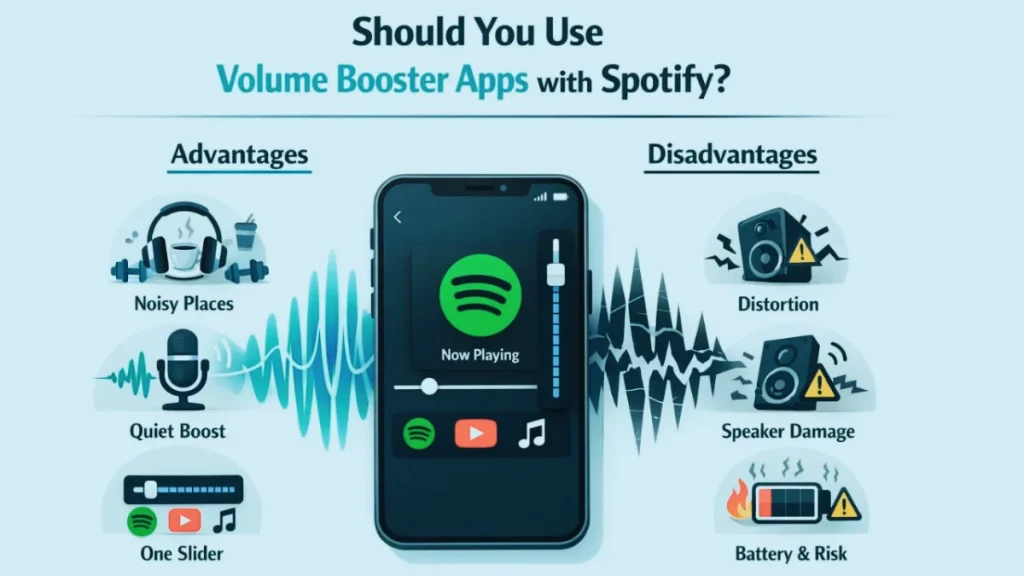
Third-party volume booster apps claim to push audio beyond your device’s normal limits. They promise instant loudness, especially in loud environments like public transit or gyms. However, these apps come with real downsides. They often degrade sound quality and can harm your speakers or headphones over time. Before downloading one, use Spotify’s built-in tools first they deliver louder, cleaner results without the risks.
Advantages of Volume Booster Apps
- Raise volume above built-in caps for noisy places. When the coffee shop chatter drowns out your playlist, a booster can give that extra push so you hear every lyric.
- Amplify quiet tracks or podcasts fast. Some songs or spoken-word episodes record at low levels; a quick slider bump makes them audible without constant volume juggling.
- Simple sliders work across all apps. One adjustment affects Spotify, YouTube, or any audio source no need to tweak each app separately.
Disadvantages of Volume Booster Apps
- Cause distortion and clipping that muddies music. Pushing past safe levels squashes dynamic range, turning crisp beats into harsh crackles.
- Strain speakers, leading to rattle or failure. Tiny phone speakers weren’t built for extreme output; prolonged use can tear the diaphragm or cause permanent buzzing.
- Drain battery, overheat device, and risk privacy with ads. Many free boosters run background processes, heat your phone, and track data through aggressive ads.
Conclusion
Skip volume booster apps entirely. They trade quality for risky gains. Instead, master Spotify’s settings: disable Loudness Normalization, switch to Very High audio quality, and dial in the equalizer. Clean speaker grills once a month with a soft brush or tone. These safe, free steps deliver powerful, distortion-free sound on any device phone, laptop, or car. Your ears and hardware stay happy while music hits harder.
FAQs
What is Speaker Cleaner Sound?
Speaker cleaner sound plays special low- and high-frequency tones. These vibrations shake the speaker cone like a mini massage. Dust, lint, and debris trapped in the grill loosen and fall out.
How does Speaker Cleaner Sound Make Spotify louder?
It removes physical barriers blocking sound waves. Spotify sends the same signal, but with a clean path, the audio escapes fully. The result: sharper highs, deeper bass, and overall louder playback.
Is Using a Speaker Cleaner Safe for My Phone?
Yes, when used correctly. Run trusted apps or YouTube tones for 30–60 seconds max. Keep device volume at 50% to prevent stress. Avoid unknown sources to skip malware.